
How to manage any client project or retainer in Danto
Short answer
Create a Client project board. Requests come in, move to In progress, then to Client review with a preview link and revision round. Approved deliverables are Done. Use it for retainers or any work that doesn't fit a specialist template.
1. Create a Client project board
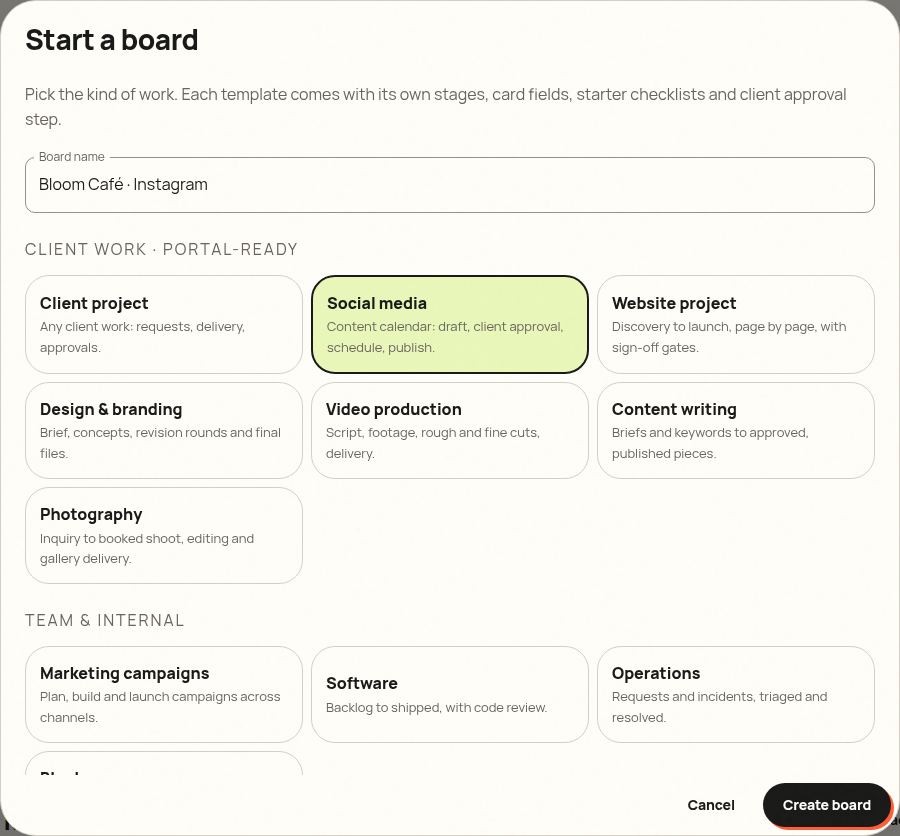
From your dashboard, click New board, name it after the client and project (for example “Acme Co · Monthly retainer”), choose Client project and click Create board.
2. Know your stages
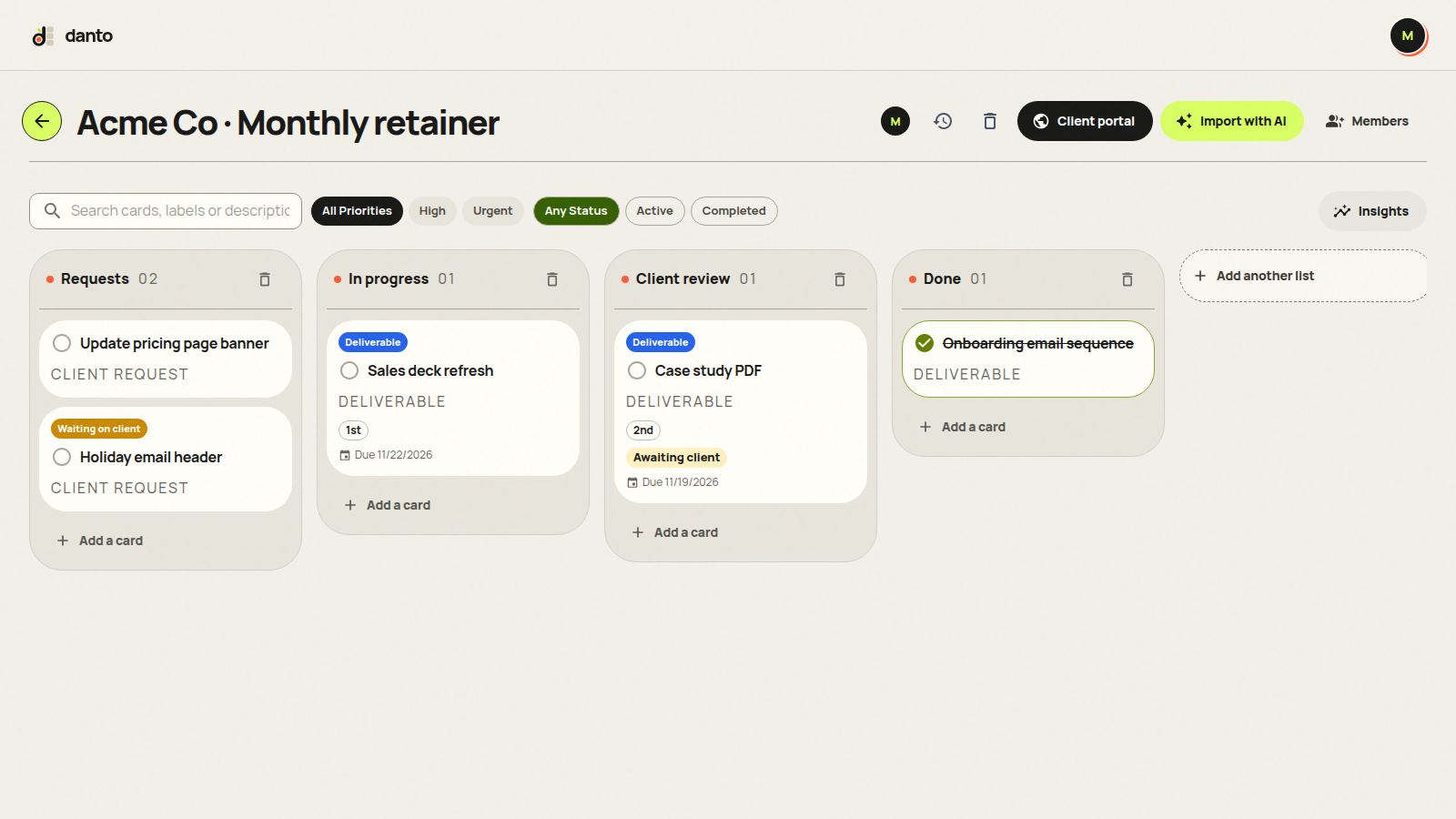
Four simple stages that fit almost any client work. Clients can also submit requests from the portal.
- Requests: new asks, including ones the client submits in the portal
- In progress
- Client review
- Done
3. Add deliverables and fill in the details
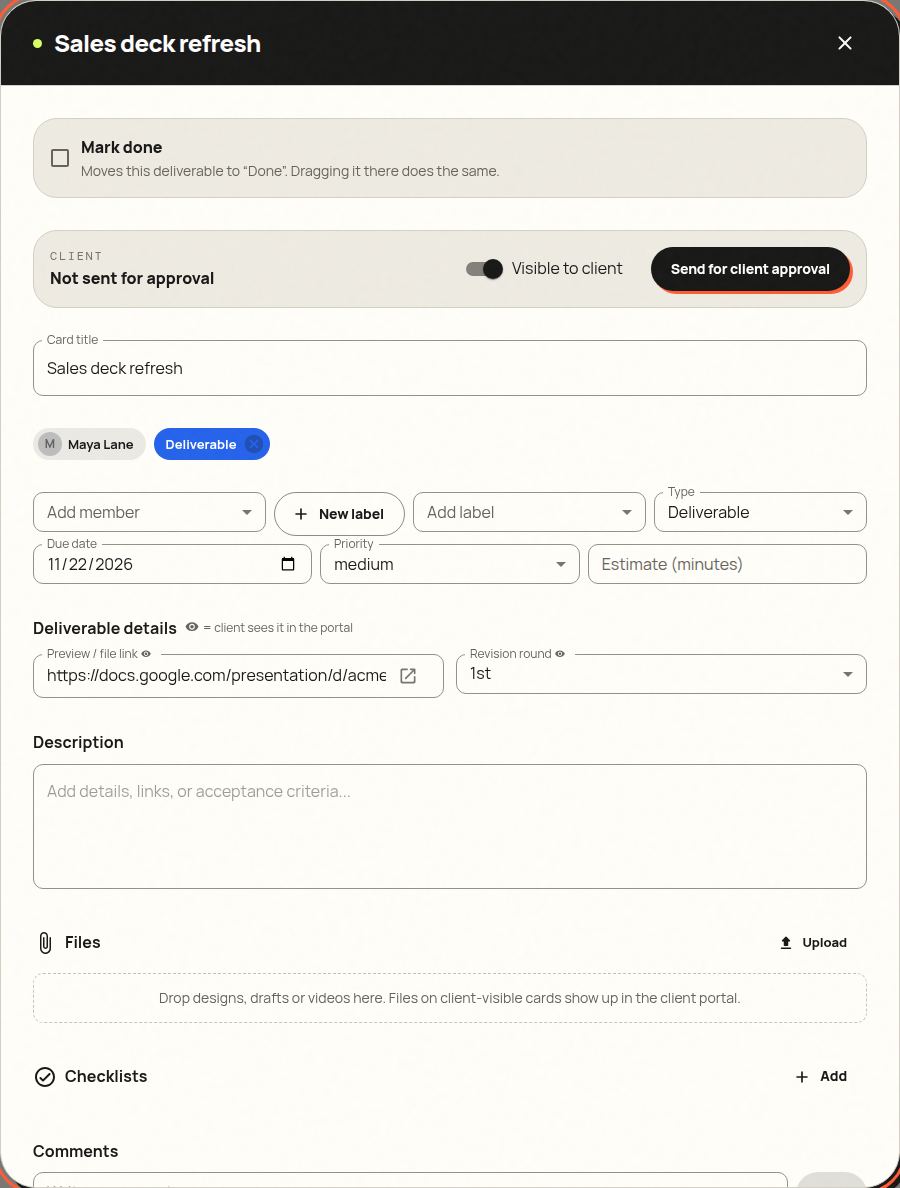
Click Add a card in any list. Choosing a type adds a starter checklist, and every card has a “Deliverable details” section with fields made for this work. Both fields are visible to the client.
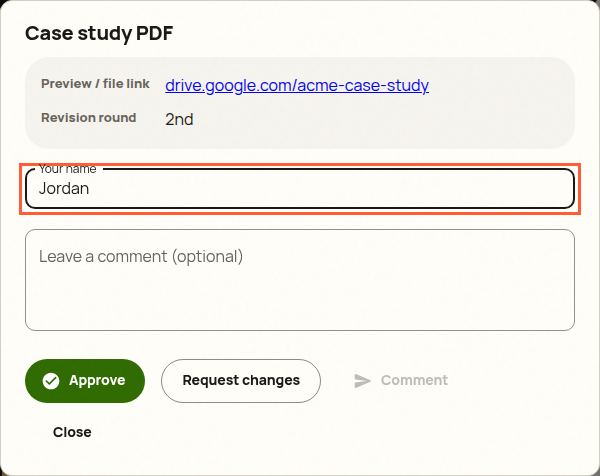
- Preview / file link
- Revision round: 1st, 2nd, 3rd, Final
4. Send it to your client for approval
When a deliverable is ready, open it, keep “Visible to client” on and click Send for client approval. The card moves into the review stage and your client gets an email with a link. They don't need an account.
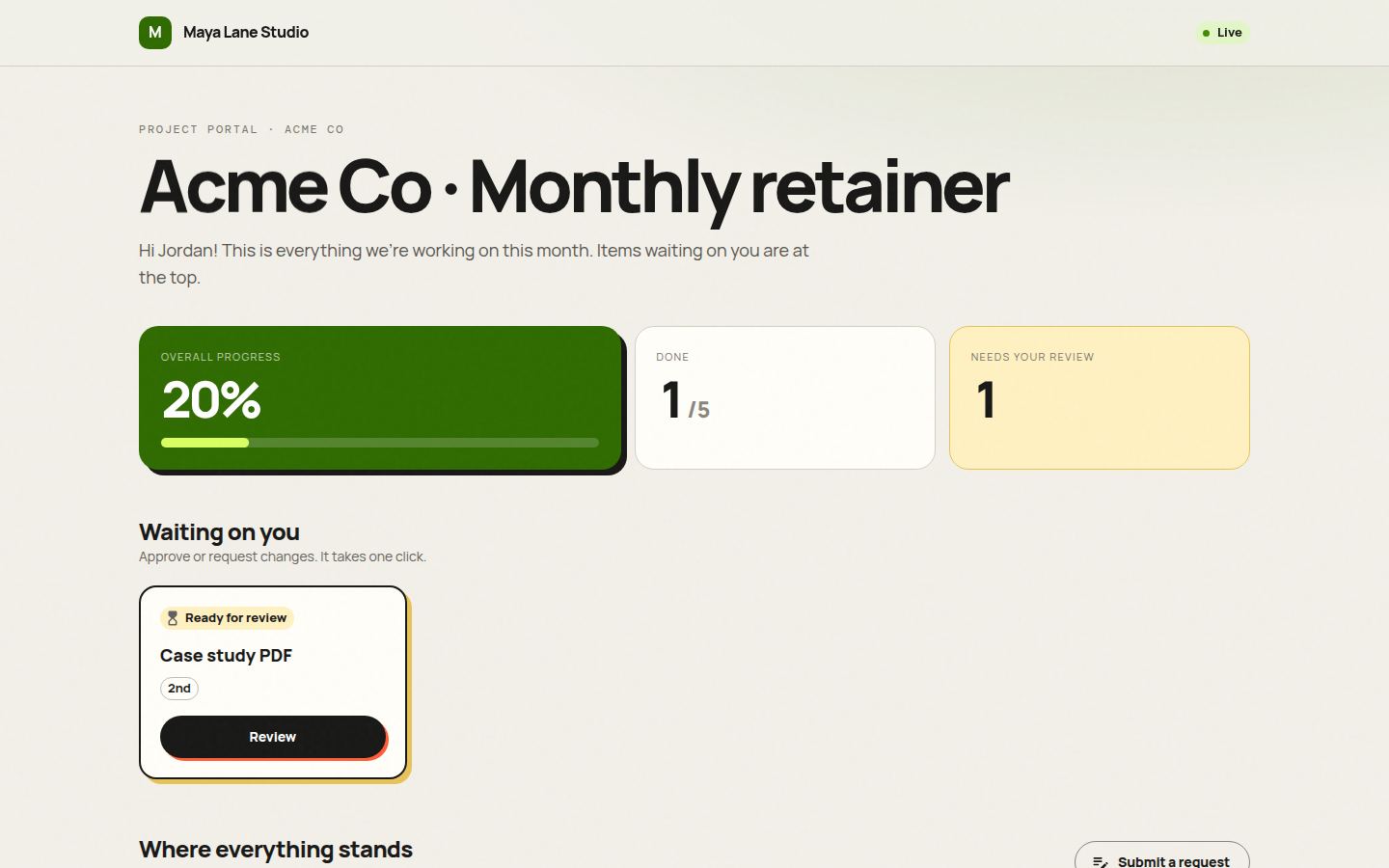
Clients see what's waiting on them, overall progress and a Submit a request button, so new asks land on your board instead of in email.
5. Your client approves or asks for changes
The client opens the deliverable, sees the details you shared, and clicks Approve or Request changes. Approving moves the card to the next stage for you. Requesting changes sends it back to your working stage with their comment, so nothing gets lost in email threads.
6. Finish with “Mark done”
Drag the card into Done, or tick Mark done in the card. Both do the same thing: the card counts as finished, and the client's progress bar moves. If you drag it back out, it's reopened.
Starter checklists
These are added automatically when you pick the card type. Edit or delete steps freely, and your client sees progress (“3 of 5 steps done”) without seeing your internal notes.
- Add your own: open a card, click Add in Checklists, and reuse it on similar cards.
Tips from people who do this work
- Share the portal link in your email signature for retainer clients.
- Use Waiting on client so slow feedback is visible, without awkward reminders.
Try it with your next client, free
Danto gives every client a live portal with one-click approvals and AI-written updates. One portal is free forever.
Create your free client portalFrequently asked questions
Will my client see everything on the board?
No. Clients see only cards with “Visible to client” on, and only fields marked with the eye icon. Internal deliverables, labels and comments stay private.
When should I use a specialist template instead?
If most of your cards are posts, pages, designs, videos, articles or shoots, the matching template gives you better fields and wording. Client project is the flexible default.