
Getting started with Danto: from first board to first client approval
Short answer
Create a workspace, start a board from the template that matches your work (social media, website, design, video, writing, photography or general client work), add your cards, then turn on the client portal and send your first item for approval. Your client approves with one click, no account needed.
1. Pick a template for the kind of work
Every template comes with its own stages, card fields, starter checklists and approval wording. A social media board has Ideas, Drafting, Client approval, Scheduled and Published, and posts have platform, caption and hashtag fields. A photography board tracks shoot dates, locations and proof galleries instead.
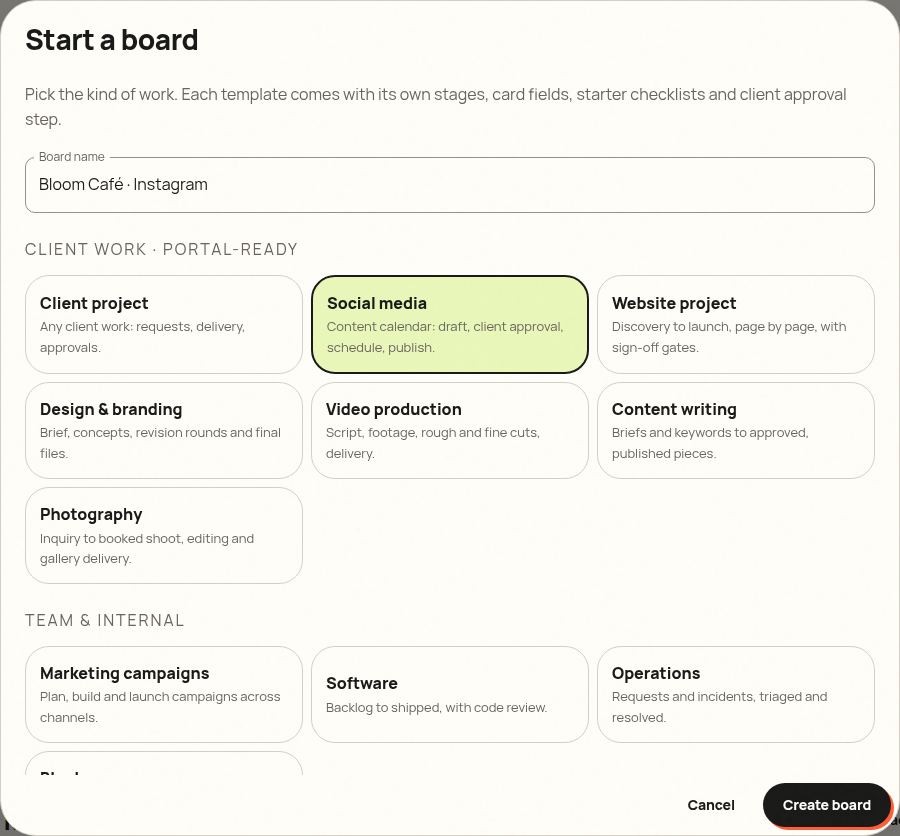
2. Follow the guide for your template
- Social media: posts, captions and a publishing calendar
- Website projects: pages, previews and launch
- Design & branding: proofs, revision rounds and final files
- Video production: rough cut, fine cut and delivery
- Content writing: briefs, drafts and published articles
- Photography: bookings, proof galleries and delivery
- Client projects: any other client work or retainer
3. Turn on the client portal
Open the board and click Client portal. Add the client's name and a short welcome message, then copy the link. Clients see progress, what's waiting on them and only the cards you mark as visible.
4. Send your first approval
Open a card that's ready, click the send-for-approval button and your client gets an email. When they approve, the card moves on by itself.
Try it with your next client, free
Danto gives every client a live portal with one-click approvals and AI-written updates. One portal is free forever.
Create your free client portalFrequently asked questions
Can I change the stages a template gives me?
Yes. Rename, add, reorder or delete lists like on any board. The finish list (Published, Delivered, Live…) keeps marking cards as finished even if you rename it.
Do my clients need a Danto account?
No. They open the portal link and approve with their name. Only you and your team need accounts.