
How to manage design and branding projects in Danto
Short answer
Create a Design & branding board. Designs move from Brief to Designing, then to Client review with a proof link and revision round. Approved designs go to Final files, and you mark them delivered when the files are sent.
1. Create a Design & branding board
From your dashboard, click New board, name it after the client and project (for example “Fern & Co · Brand identity”), choose Design & branding and click Create board.
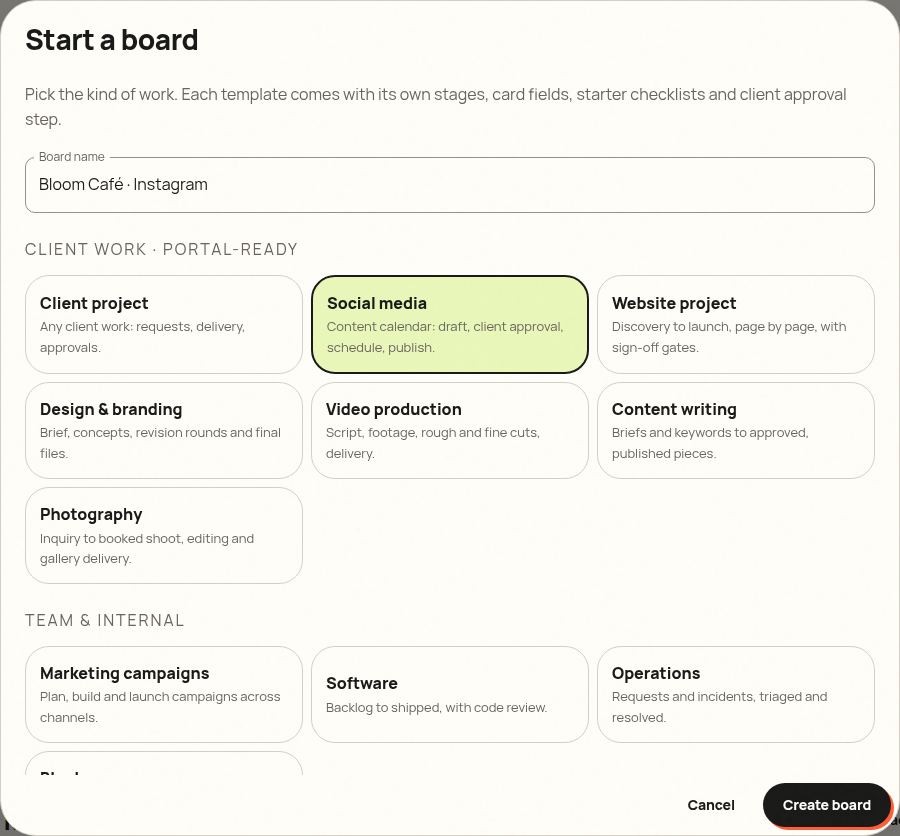
2. Know your stages
Revision rounds are tracked on every card, so it's clear when a request is an extra round.
- Brief: what the client asked for, with a moodboard
- Designing: concepts and revisions
- Client review: proof sent, waiting for approval
- Final files: approved; exporting the final formats
- Delivered: files sent to the client
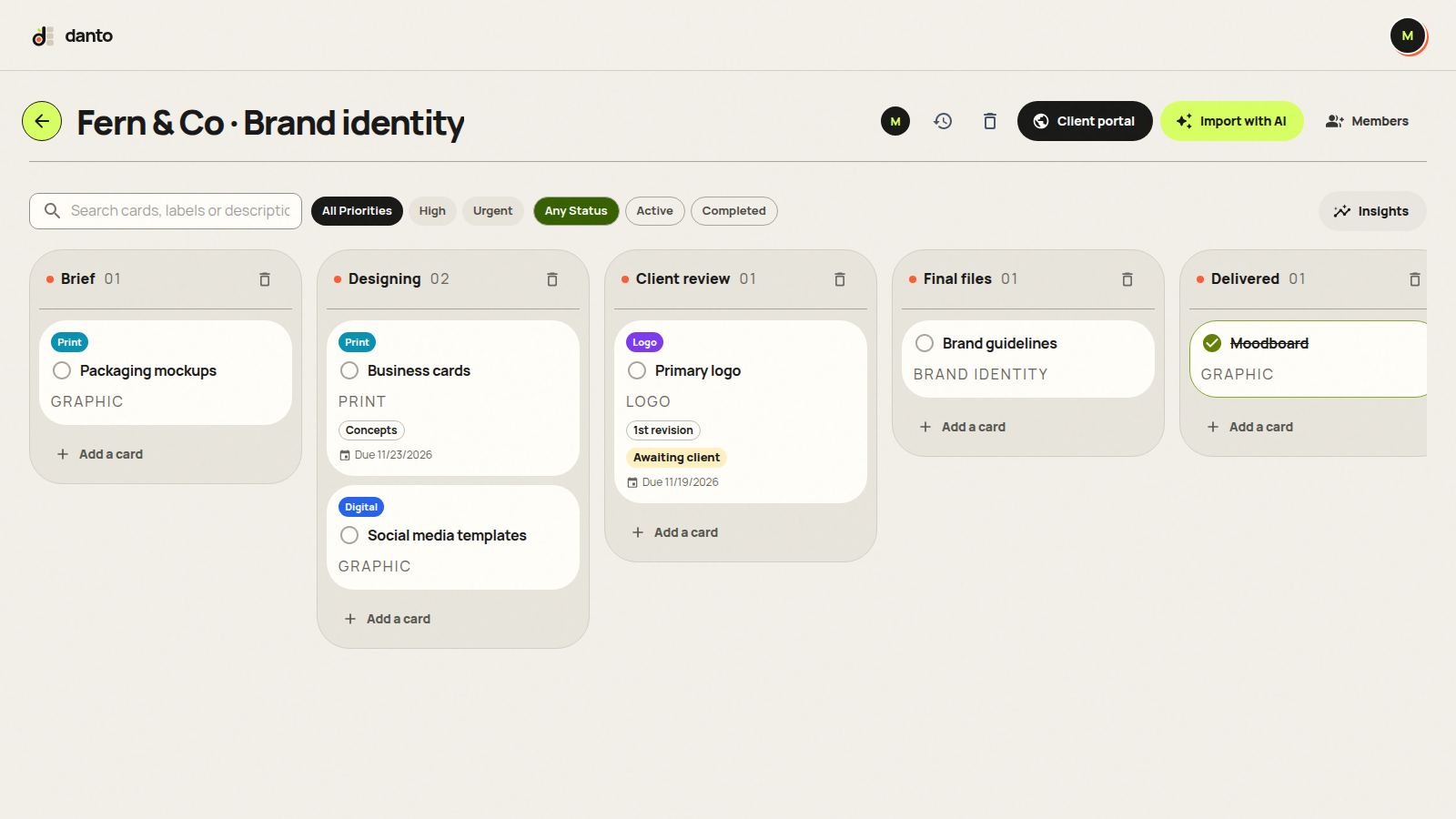
3. Add designs and fill in the details
Click Add a card in any list. Choosing a type adds a starter checklist, and every card has a “Design details” section with fields made for this work. Every field is visible to the client.
- Proof link: Figma prototype, PDF or image
- Revision round: Concepts, 1st revision, 2nd revision, Final
- File formats: SVG, PNG, PDF, AI and more
- Size / dimensions: for example 1080×1350 or A4
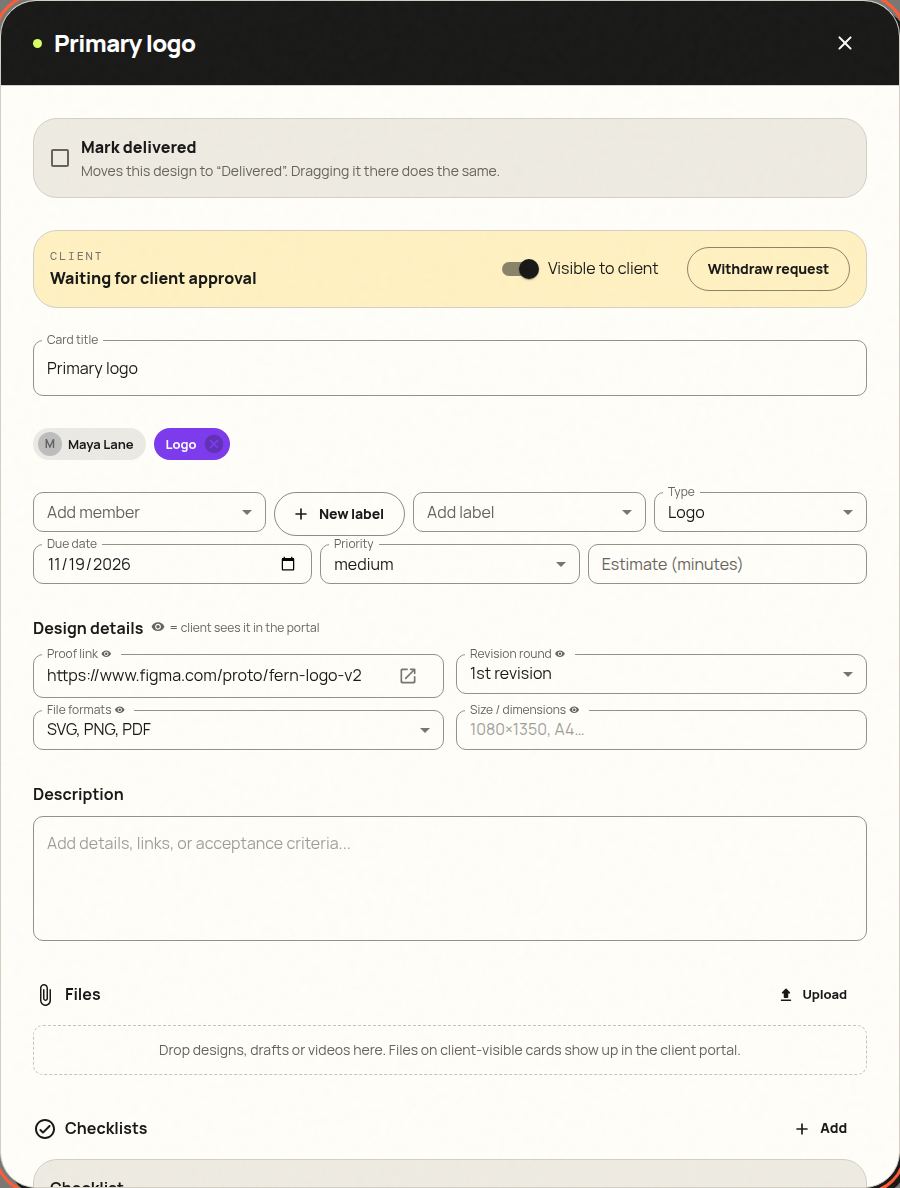
4. Send it to your client for approval
When a design is ready, open it, keep “Visible to client” on and click Send proof for approval. The card moves into the review stage and your client gets an email with a link. They don't need an account.
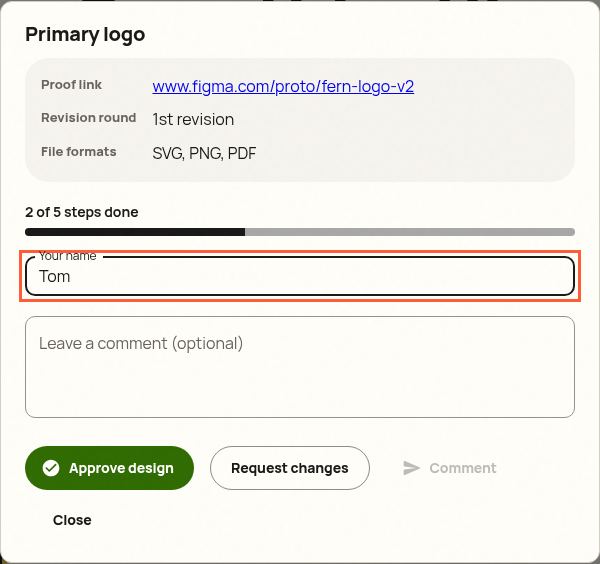
The portal shows the revision round right on the card, so the client knows where things stand.
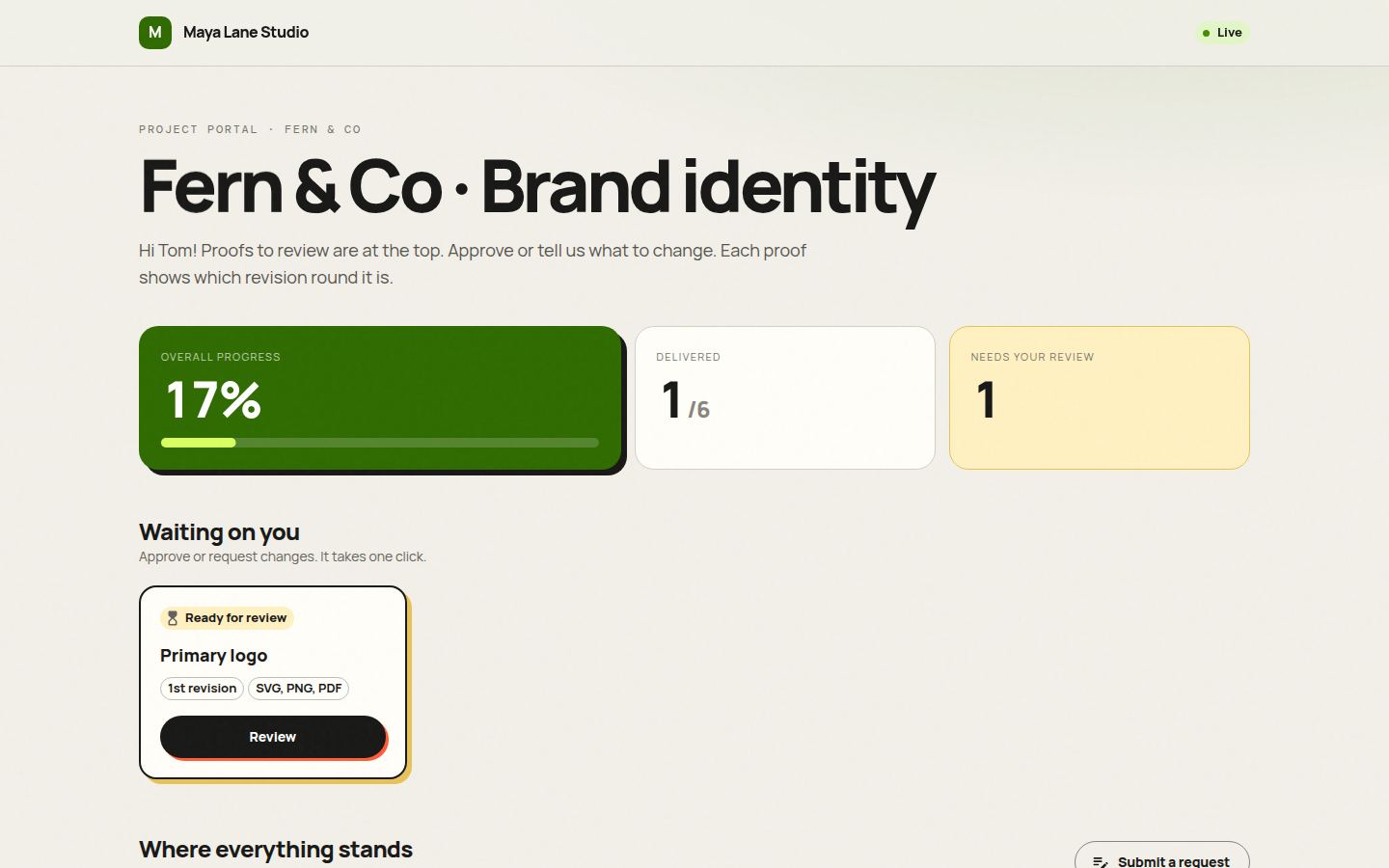
5. Your client approves or asks for changes
The client opens the design, sees the details you shared, and clicks Approve design or Request changes. Approving moves the card to the next stage for you. Requesting changes sends it back to your working stage with their comment, so nothing gets lost in email threads.
6. Finish with “Mark delivered”
Drag the card into Delivered, or tick Mark delivered in the card. Both do the same thing: the card counts as finished, and the client's progress bar moves. If you drag it back out, it's reopened.
Starter checklists
These are added automatically when you pick the card type. Edit or delete steps freely, and your client sees progress (“3 of 5 steps done”) without seeing your internal notes.
- Logo: brief and moodboard agreed, initial concepts, chosen concept refined, colour/mono/reversed versions, exported SVG, PNG and PDF
- Brand identity: logo approved, colour palette, typography, brand guidelines, final file pack delivered
Tips from people who do this work
- Write the number of included rounds in your contract, then use the Extra round label when a client goes past it.
- Send one proof per card so feedback stays attached to the right design.
Try it with your next client, free
Danto gives every client a live portal with one-click approvals and AI-written updates. One portal is free forever.
Create your free client portalFrequently asked questions
Will my client see everything on the board?
No. Clients see only cards with “Visible to client” on, and only fields marked with the eye icon. Internal designs, labels and comments stay private.
Can the client comment on a design without approving?
Yes. They can leave a comment, approve or request changes. Requesting changes moves the card back to Designing.