
How to manage video editing and production for clients in Danto
Short answer
Create a Video production board. Videos move from Brief & script to Footage in and Editing, then to Client review with a review link and cut stage (rough, fine, final). Approved videos are delivered with a final files link.
1. Create a Video production board
From your dashboard, click New board, name it after the client and project (for example “Kite Running Club · YouTube”), choose Video production and click Create board.
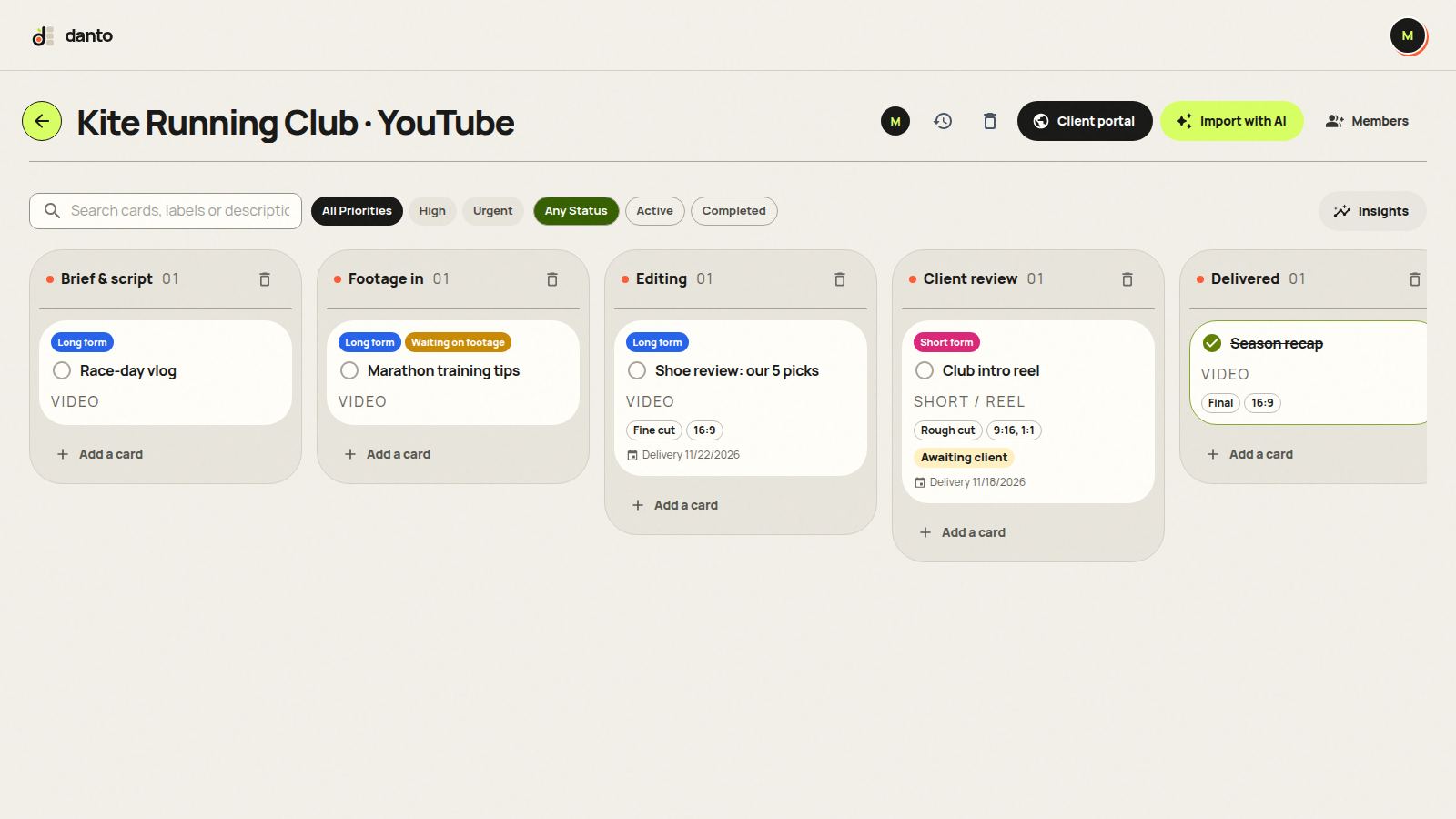
2. Know your stages
The Cut field tells the client what kind of feedback you need: structure on a rough cut, details on a fine cut.
- Brief & script
- Footage in: waiting on or receiving footage
- Editing
- Client review: the client watches the cut
- Delivered: final exports sent
3. Add videos and fill in the details
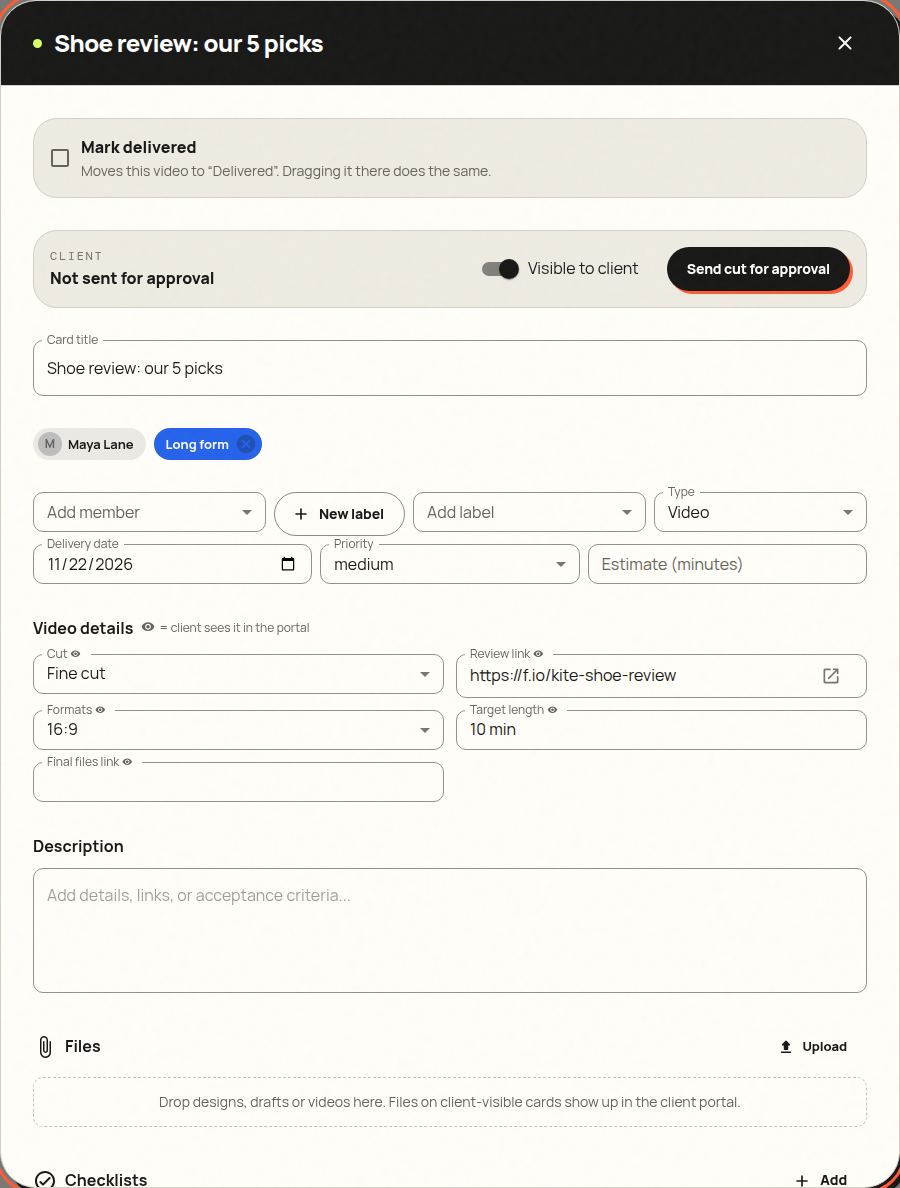
Click Add a card in any list. Choosing a type adds a starter checklist, and every card has a “Video details” section with fields made for this work. All fields can be shown to the client.
- Cut: Rough cut, Fine cut, Final
- Review link: Frame.io, Vimeo or Drive link
- Formats: 16:9, 9:16, 1:1, 4:5
- Target length
- Final files link
4. Send it to your client for approval
When a video is ready, open it, keep “Visible to client” on and click Send cut for approval. The card moves into the review stage and your client gets an email with a link. They don't need an account.
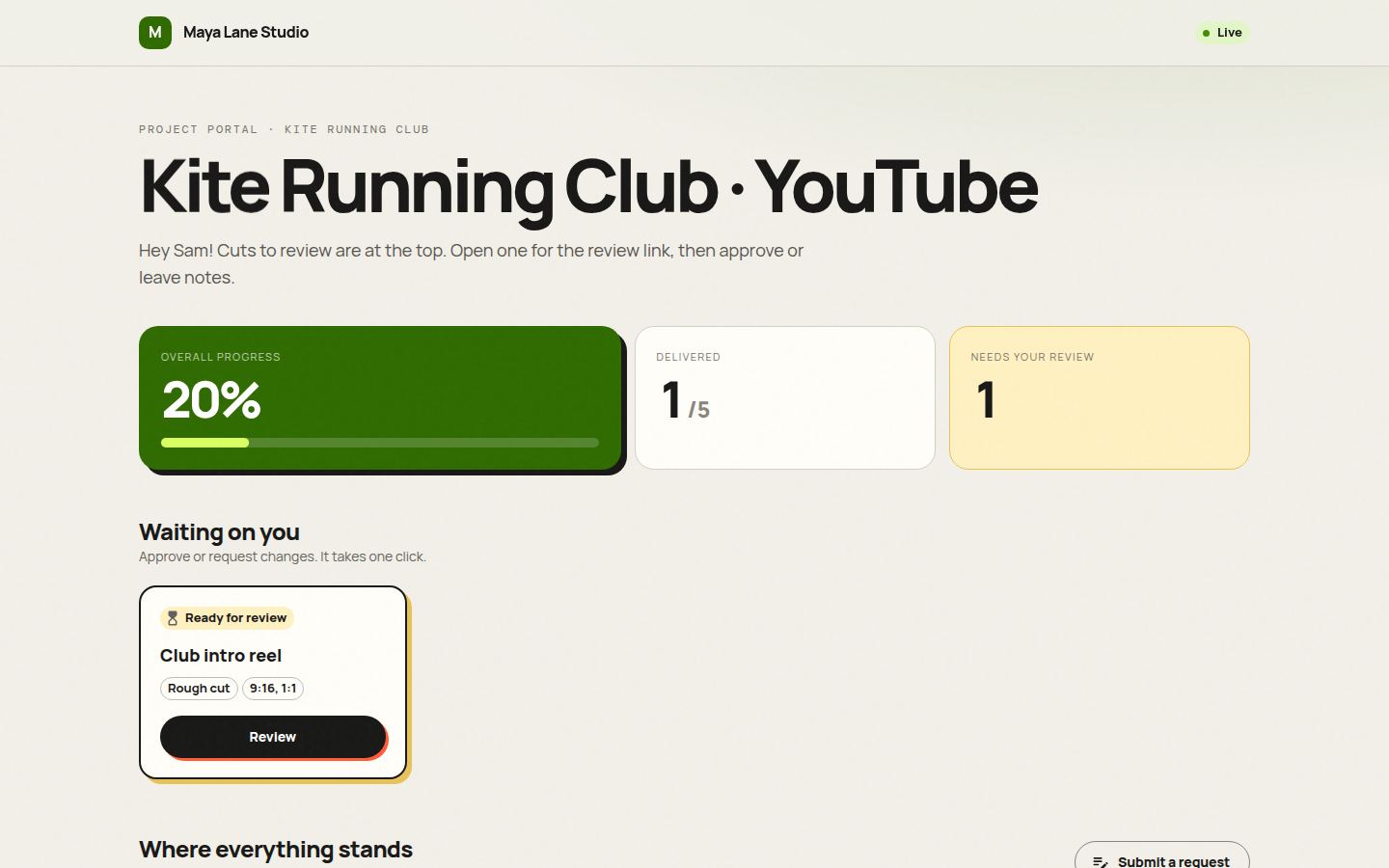
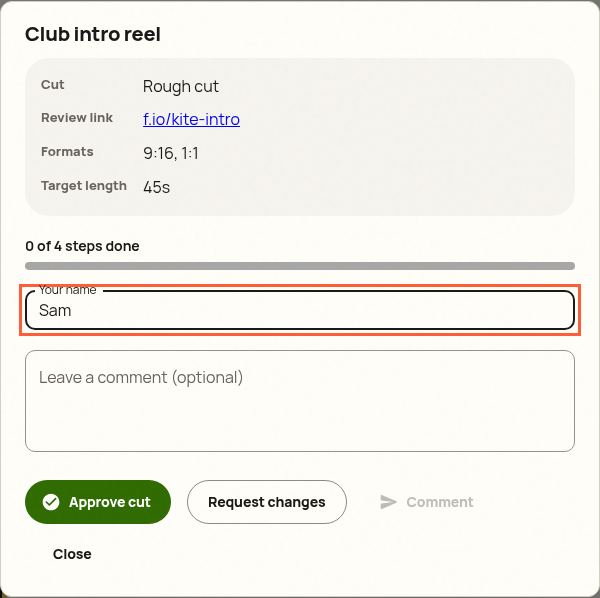
Clients see which cut is waiting on them and which formats they'll get.
5. Your client approves or asks for changes
The client opens the video, sees the details you shared, and clicks Approve cut or Request changes. Approving moves the card to the next stage for you. Requesting changes sends it back to your working stage with their comment, so nothing gets lost in email threads.
6. Finish with “Mark delivered”
Drag the card into Delivered, or tick Mark delivered in the card. Both do the same thing: the card counts as finished, and the client's progress bar moves. If you drag it back out, it's reopened.
Starter checklists
These are added automatically when you pick the card type. Edit or delete steps freely, and your client sees progress (“3 of 5 steps done”) without seeing your internal notes.
- Video: footage and assets received, rough cut, music and sound, colour grade, captions, final export
- Short / reel: hook in the first 3 seconds, edit, burned-in captions, vertical export
Tips from people who do this work
- Ask for approval at rough cut. Structural changes after the fine cut cost the most time.
- Use Waiting on footage so the client sees a delay is on their side.
- Keep timestamped notes in your review tool and a summary in the card comment.
Try it with your next client, free
Danto gives every client a live portal with one-click approvals and AI-written updates. One portal is free forever.
Create your free client portalFrequently asked questions
Will my client see everything on the board?
No. Clients see only cards with “Visible to client” on, and only fields marked with the eye icon. Internal videos, labels and comments stay private.
Can I upload the video to Danto?
You can attach files to cards, but for review we recommend a link to Frame.io, Vimeo or Drive in the Review link field, so the client can stream it at full quality.